Get Started
Once you have installed the add-on, you can choose to access Quad Maker’s operations in different ways when in Blender’s Edit Mode:
Right Click Menu: use each operation individually.
Main Tool: use all operations together.
You can also choose to quickly set up your retopology environment by creating a new blank mesh with the main tool automatically selected and Blender’s retopology settings automatically applied.
Right Click Menu
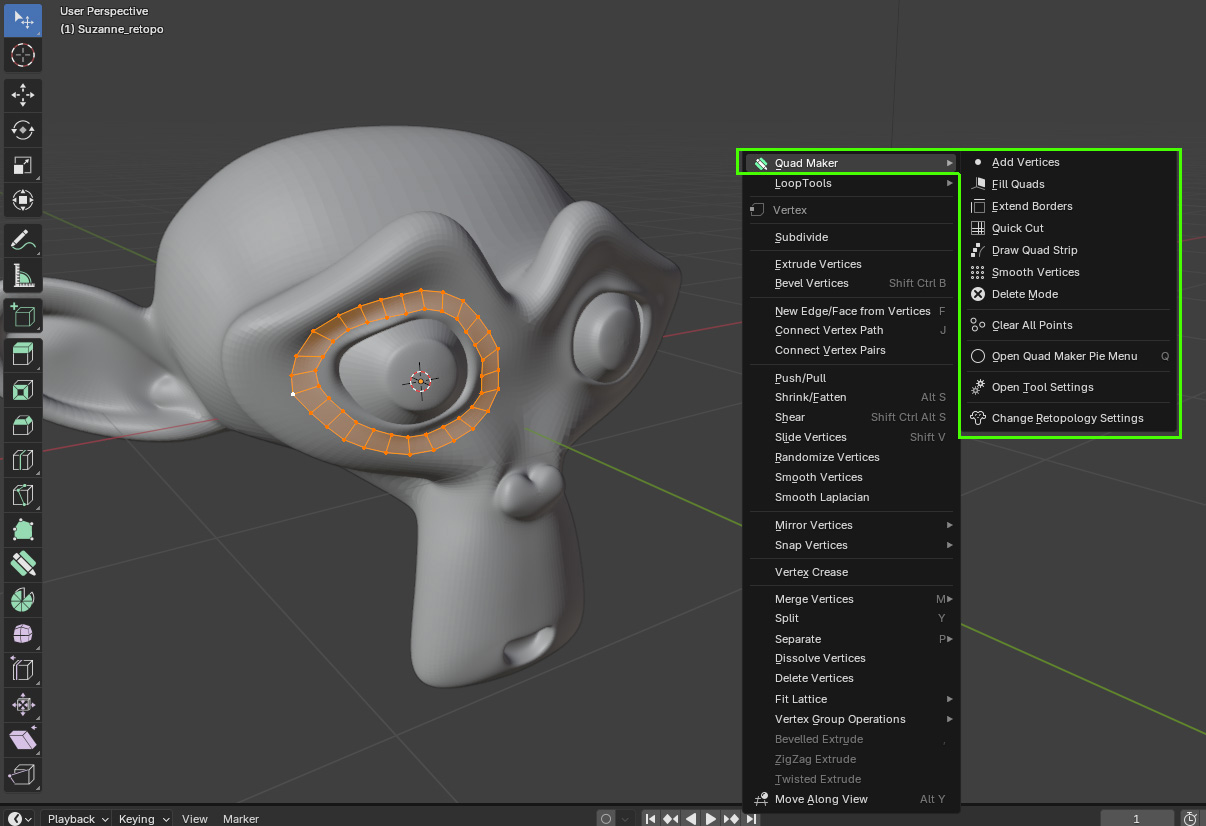
The simplest way to access Quad Maker’s operations is to right-click any time in Blender’s Edit Mode to access each operation individually.
This gives you the option of using Quad Maker at any point in your existing workflow whenever you are in Blender’s Edit Mode:
Important
When you have finished with each menu operation, right-click again or press the escape key to exit.
Tip

If you see this menu instead, this means you are in Blender’s Object Mode. Select ‘Enter Edit Mode’ to switch to object mode and see Quad Makers operations in the menu.
It can however be difficult to use the operations fluently together in this way.
To quickly use Quad Maker’s operations together, use the main tool described below.
Main Tool
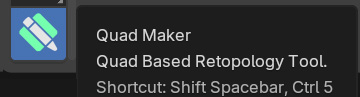
The quickest way to use Quad Maker is by using the main interactive tool in edit mode which binds all operations to keyboard shortcuts whilst the tool is selected. Select this tool in edit mode by clicking on the quad maker icon in the tool menu on the left hand side of the viewport:
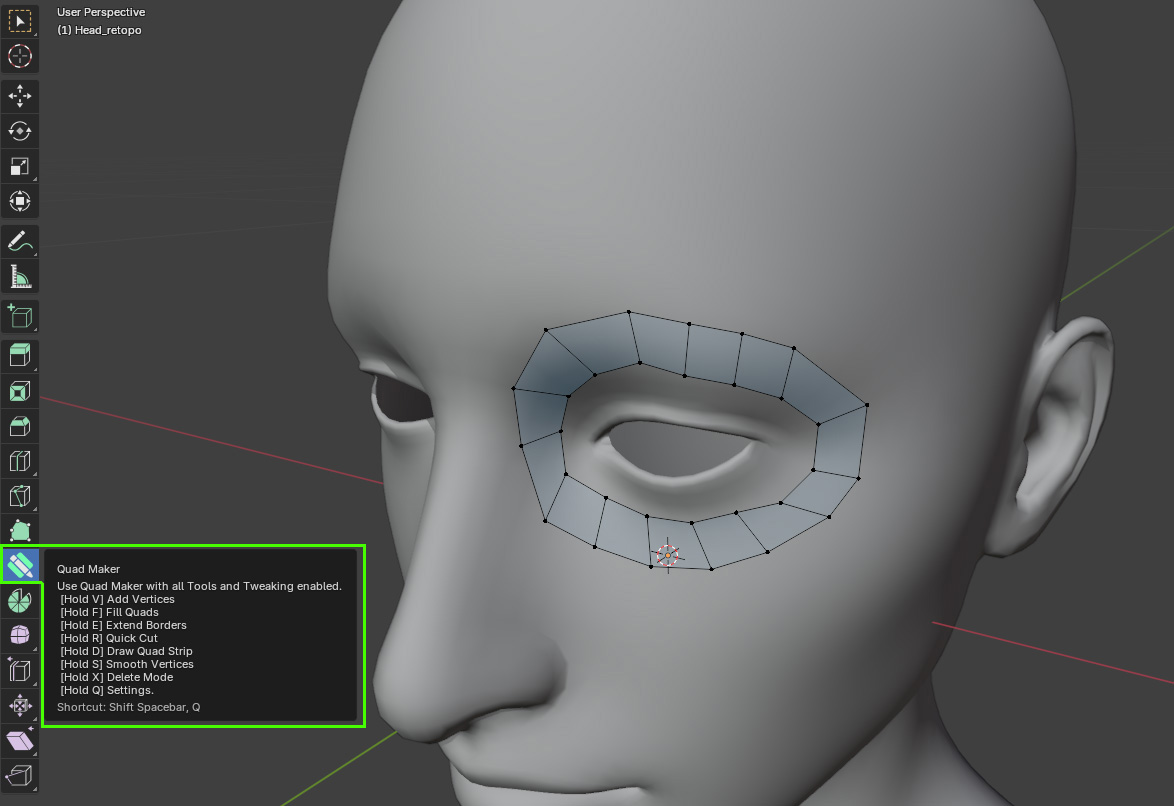
You can swap in and out of the Quad Maker tool at any time by clicking the different tools on the left hand side of the viewport.
Tip
Press the W key to go back to the default Blender selection tool at any time.
Creating a new blank mesh for retopology
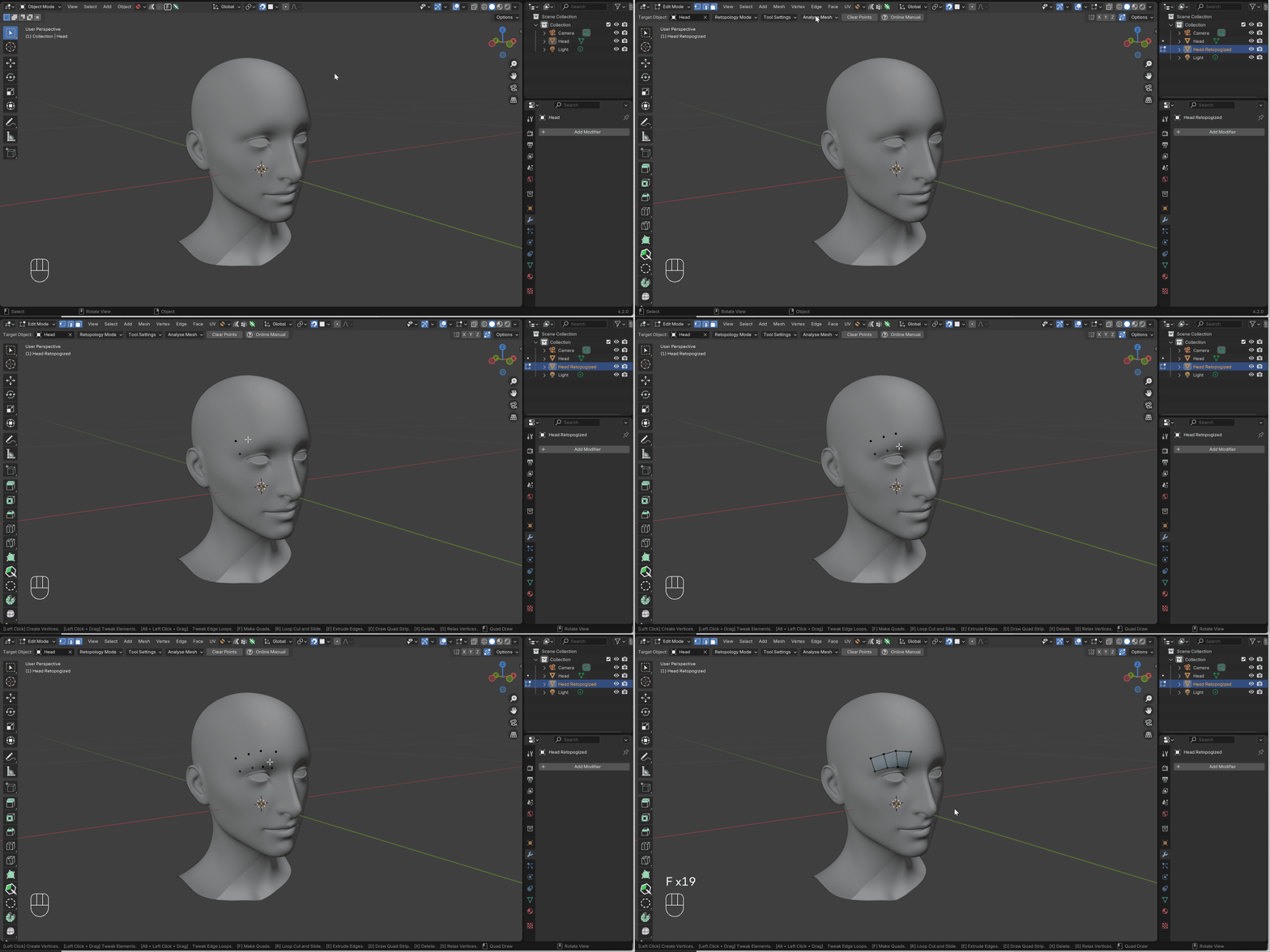
You can optionally create a new blank mesh and automatically select the Quad Maker tool for retopology by taking the following steps:
With the object you wish to retopologize selected in Blender’s Object Mode, click the Quad Maker icon along the top of the viewport.

Select Add New Object with Quad Maker option from the dropdown menu.
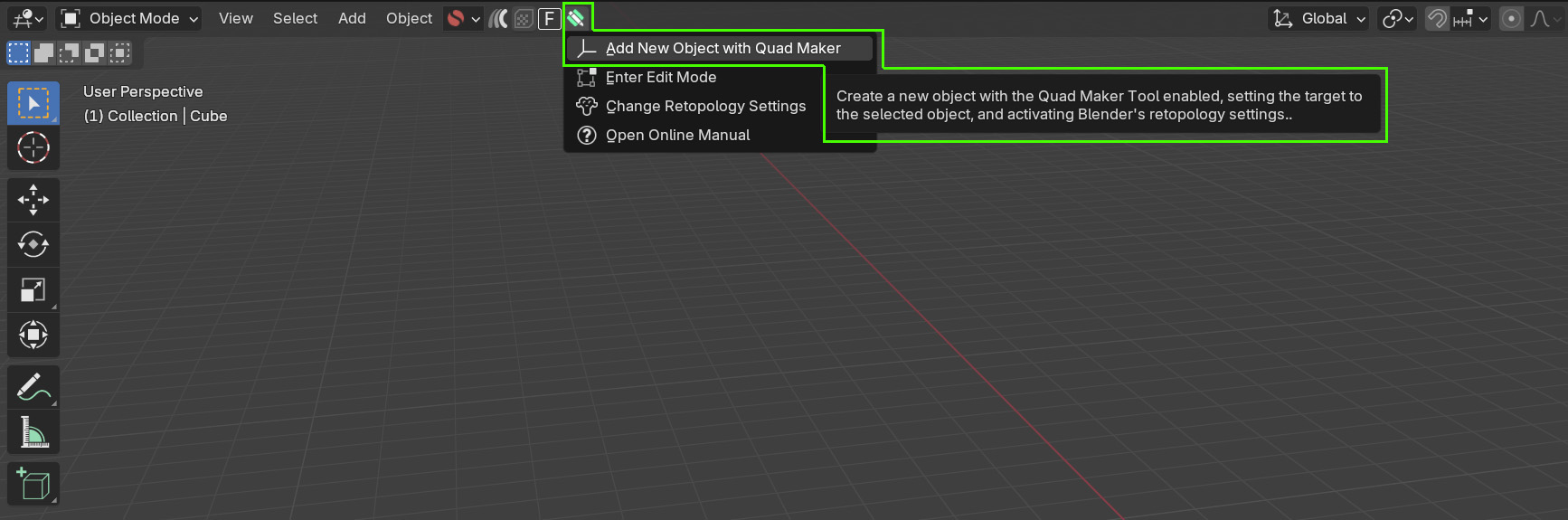
This option will automatically:
Create a new blank object called <Object Name> Retopologized.
Select this new blank object.
Enter Edit Mode.
Enable the Quad Maker tool on the left hand side of the viewport.
Set the target object to the originally selected object.

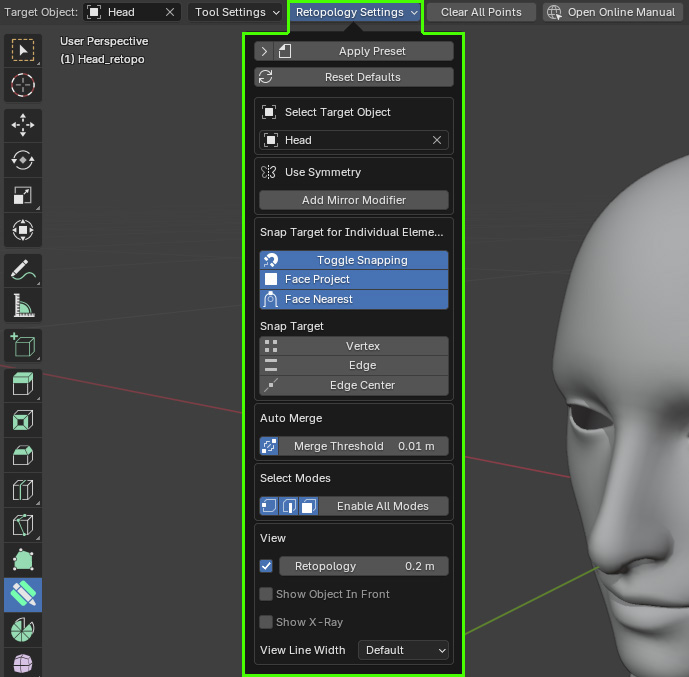
Enable preset Blender retopology settings.
Tip
You can always perform these steps manually if you wish.
You can then start retopologizing your object using the Quad Maker operations.
You can exit and re-enter the tool simply by selecting another tool from the side menu, or exiting Edit Mode by pressing the tab key.
Note
There is nothing ‘special’ about the new object created by the Add New Object with Quad Maker option. It is simply a blank object with the Quad Maker tool enabled. You can use this object as you would any other object in Blender.
If you have any issues, please do not hesitate to Contact Us.