Operations
Add Vertices
[Hold V + Left Click]
While Operation is Active:
[Tap F / Up & Down Arrows]: Change vertex draw spacingNote
When using the Tool Shortcut, keep holding V to keep the operation active.
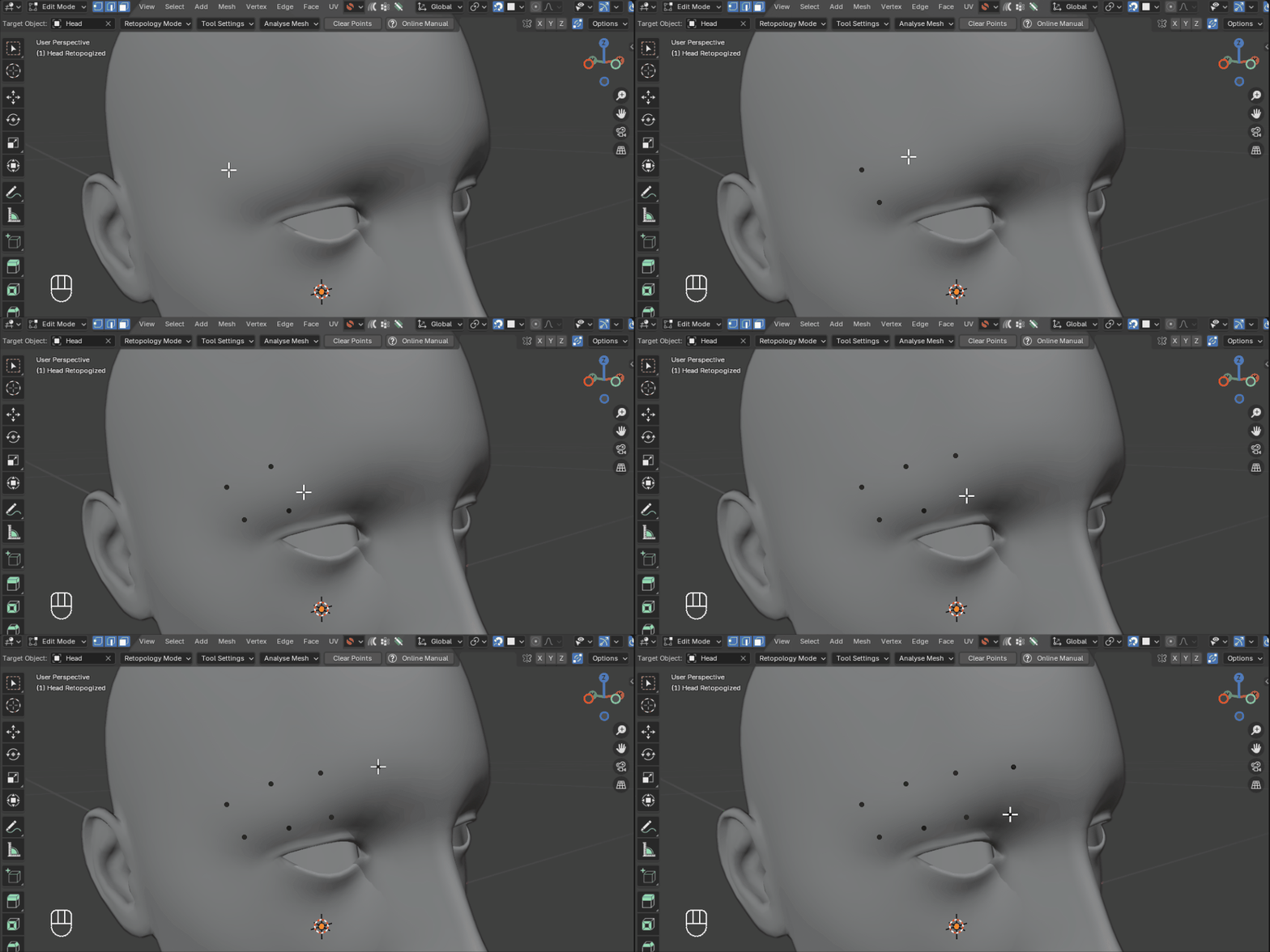
Plan ahead by placing vertices onto a target surface ready to fill with quads.
By clicking and dragging you can also draw multiple vertices at once.
Fill Quads
[Hold F + Left Click + Drag]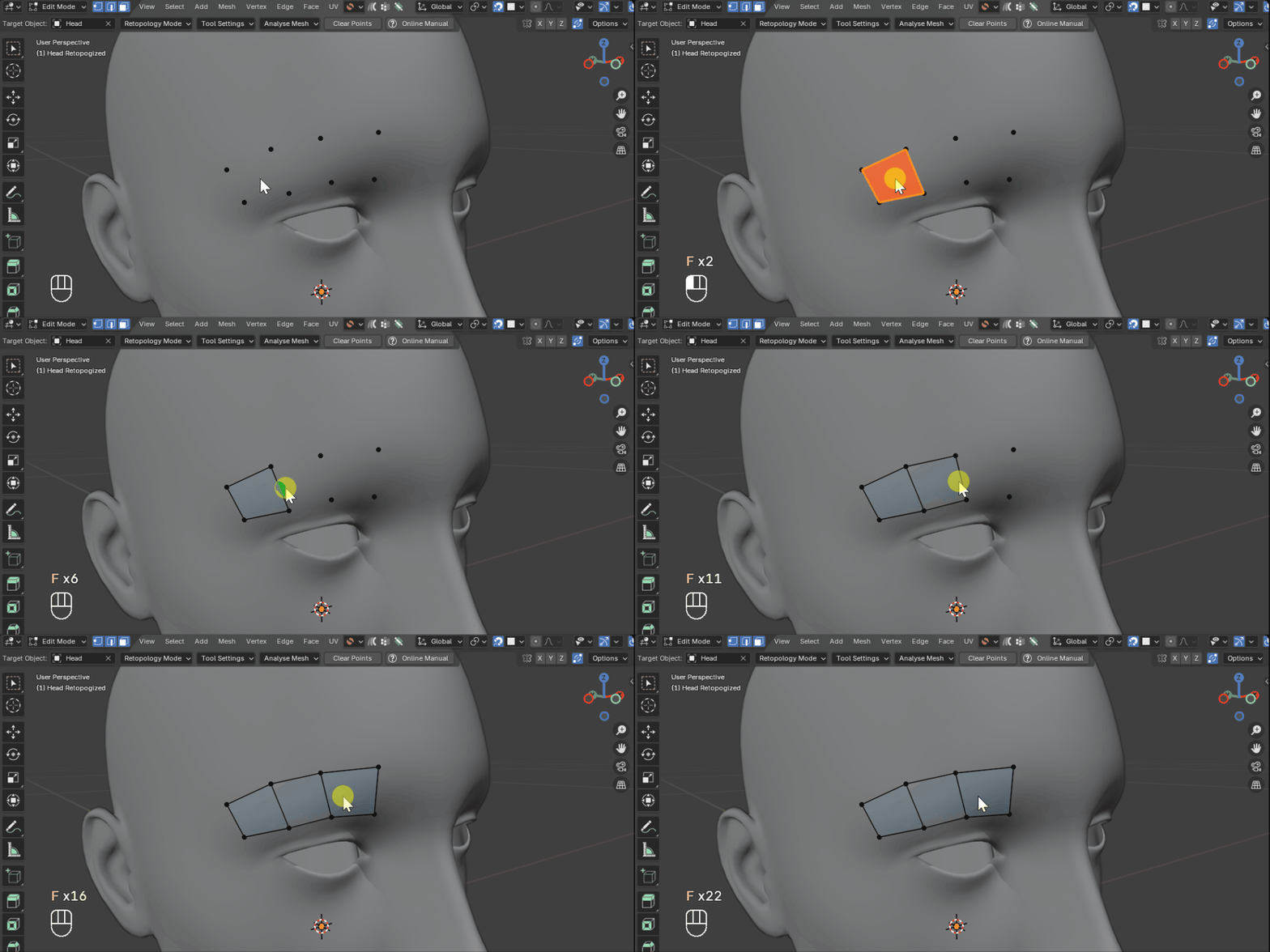
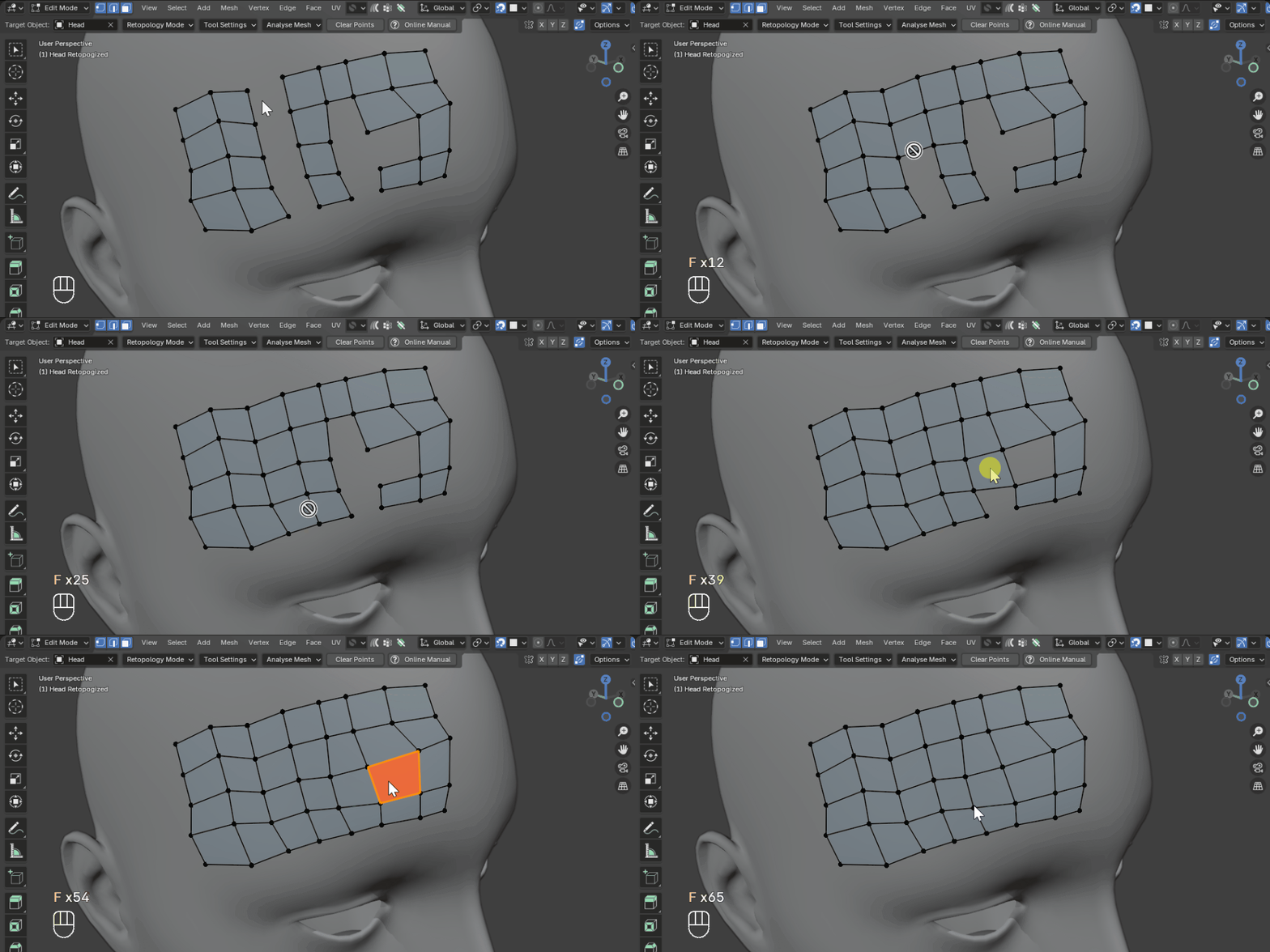
Fills in quads between points, edges, and holes in the geometry.
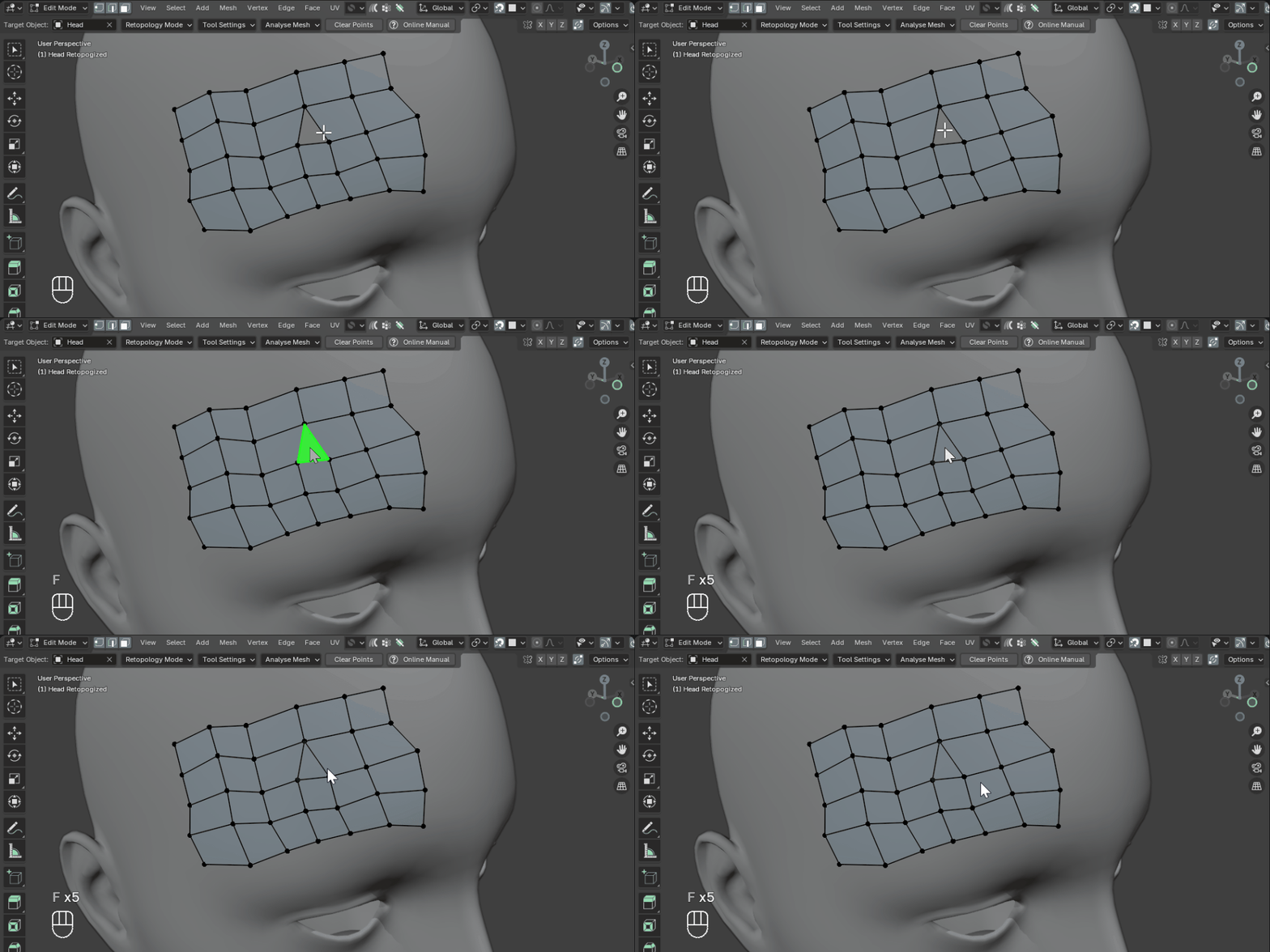
Tip
Also fills trianglular holes.
Extend Borders
[Hold E and Left Click + Drag]
While Operation is Active:
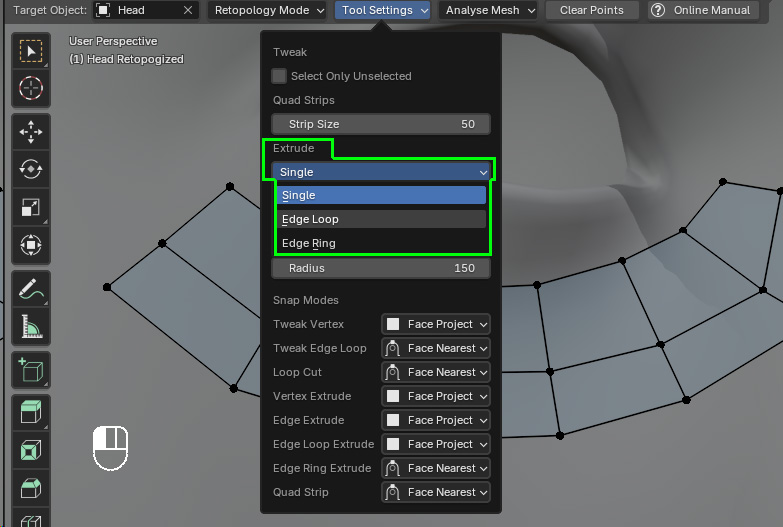
[Tap Spacebar]: Change Extend Mode (Single, Loop, Ring)Note
When using the Tool Shortcut, keep holding E to keep the operation active.
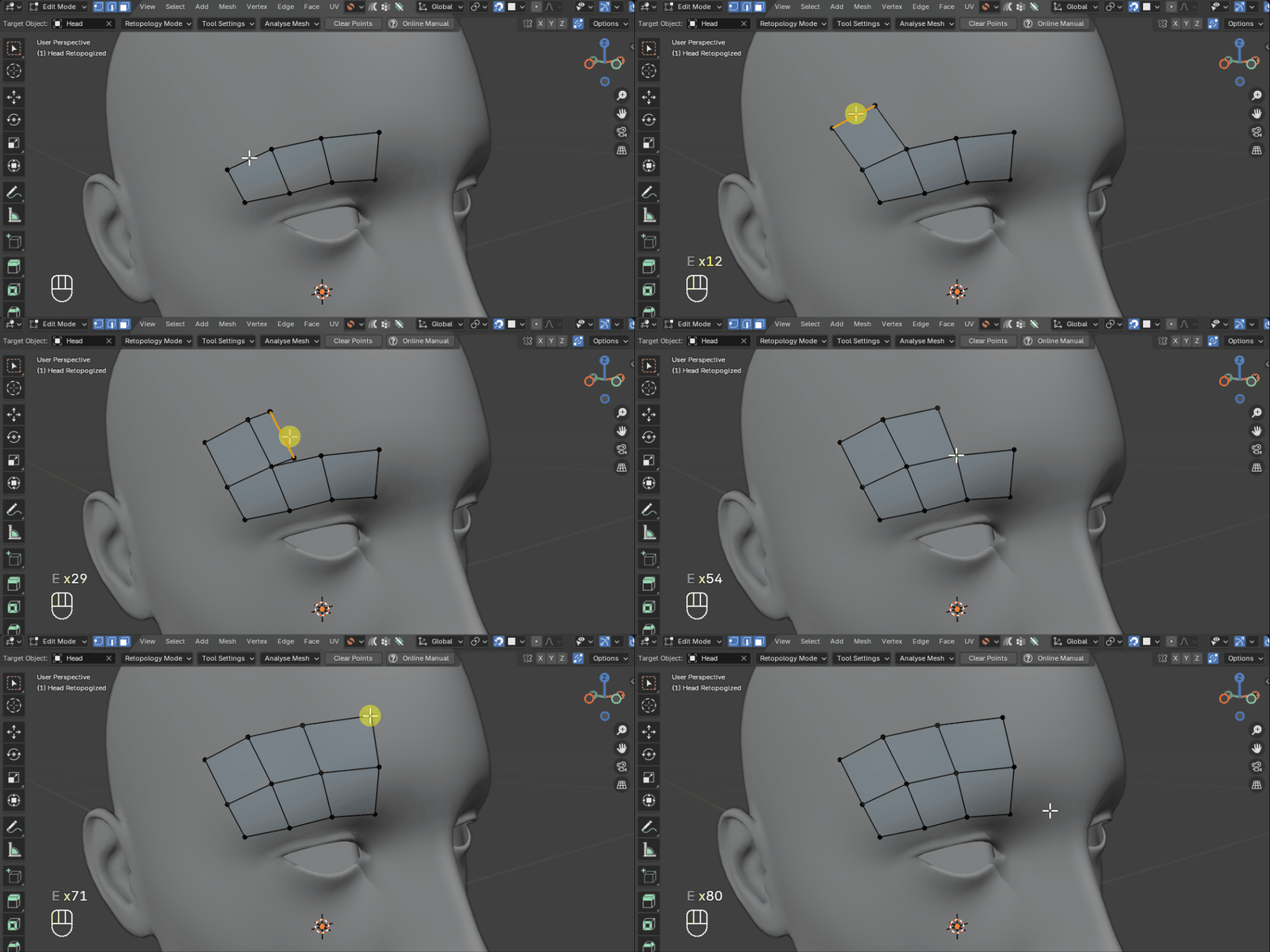
Extrude border edges or create new faces from border points.
Extend Modes
Tip
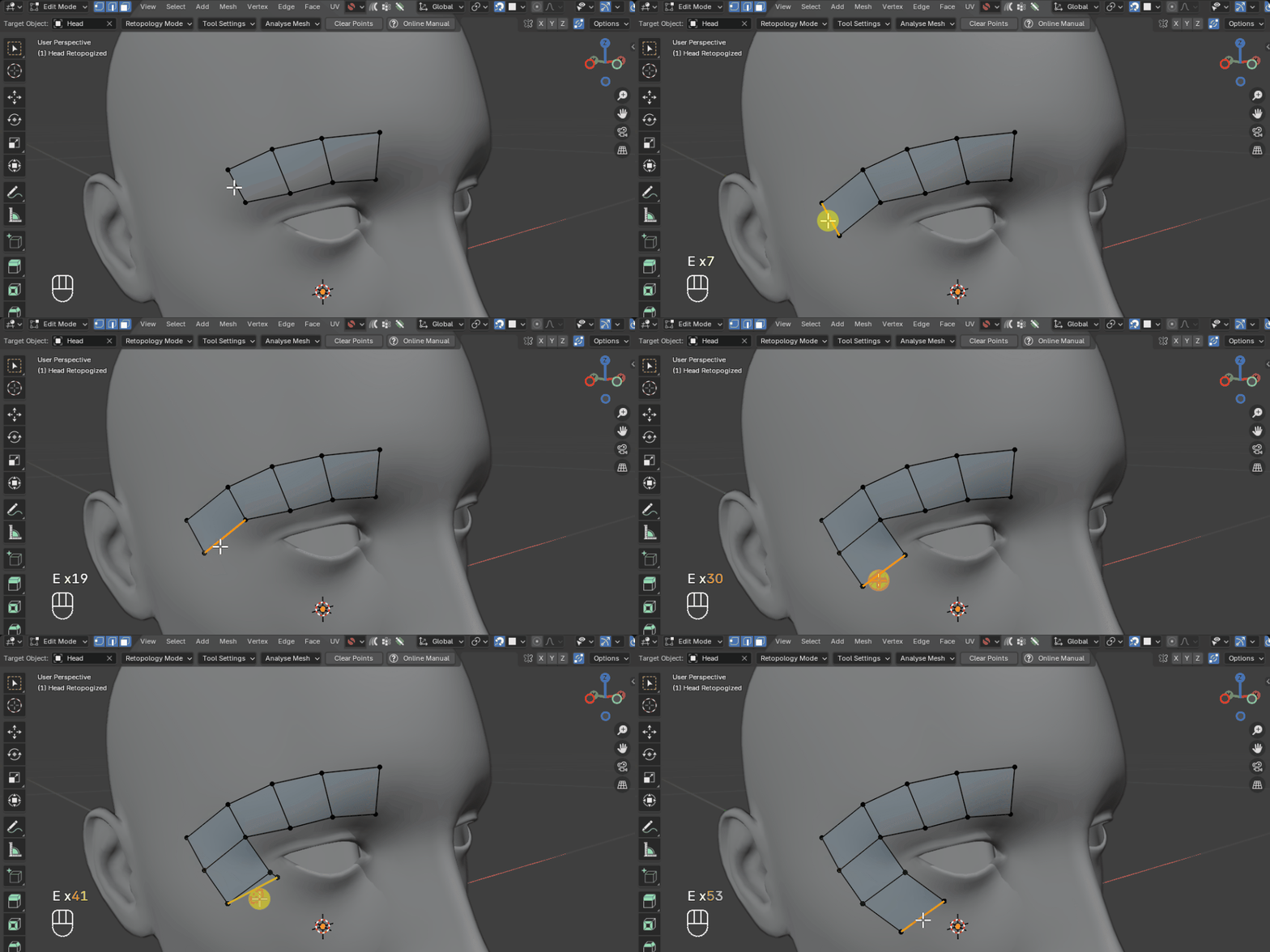
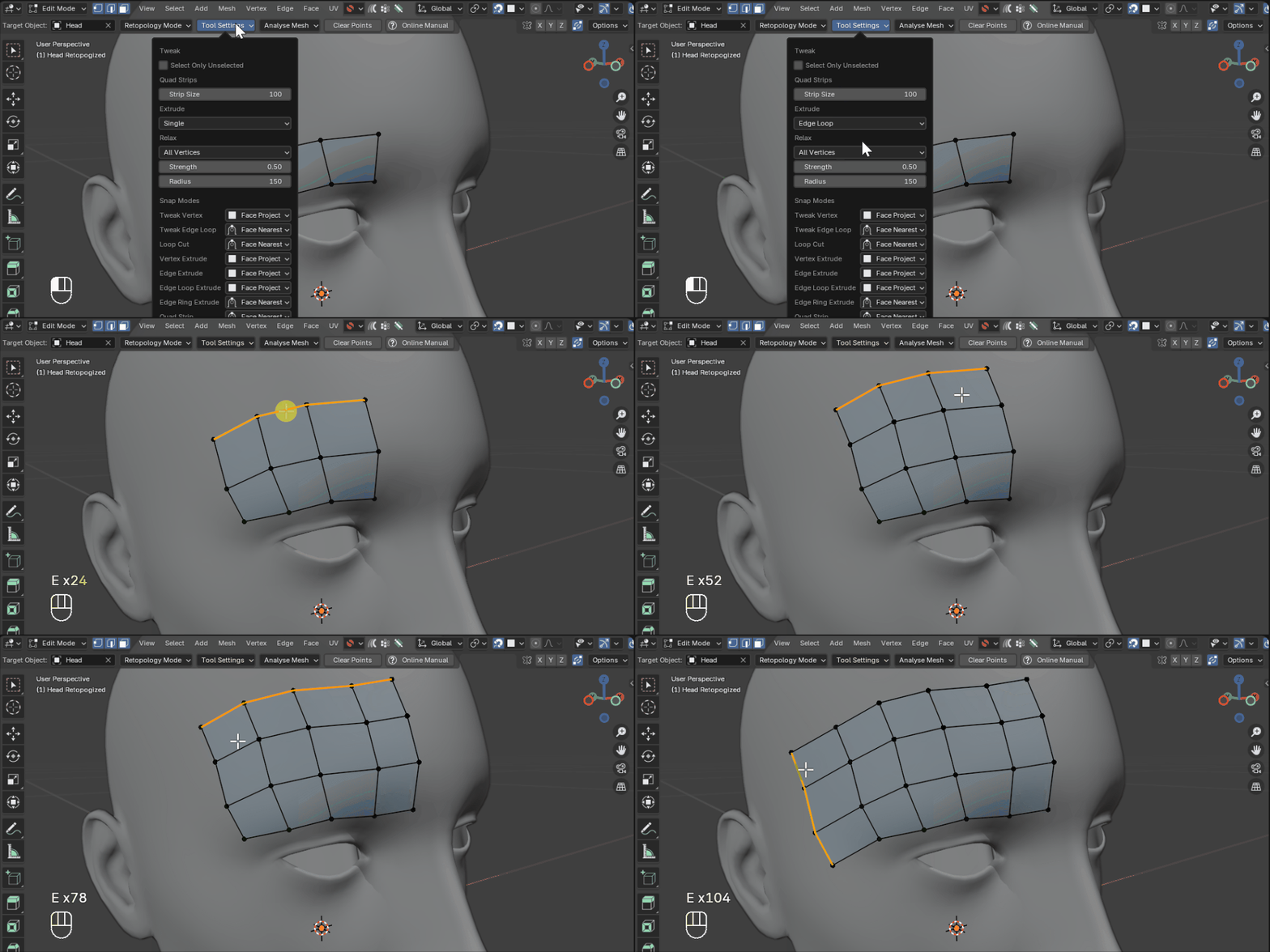
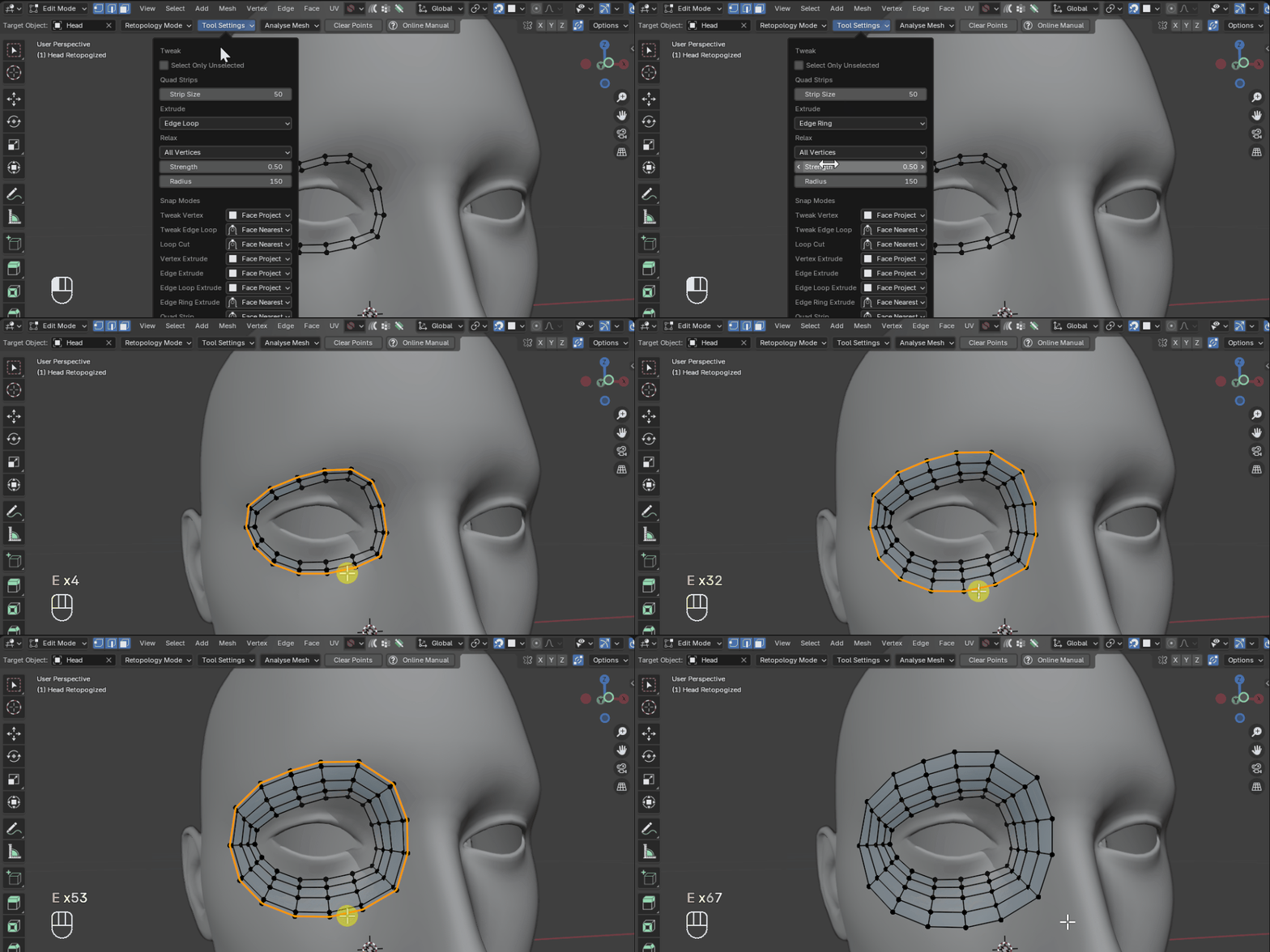
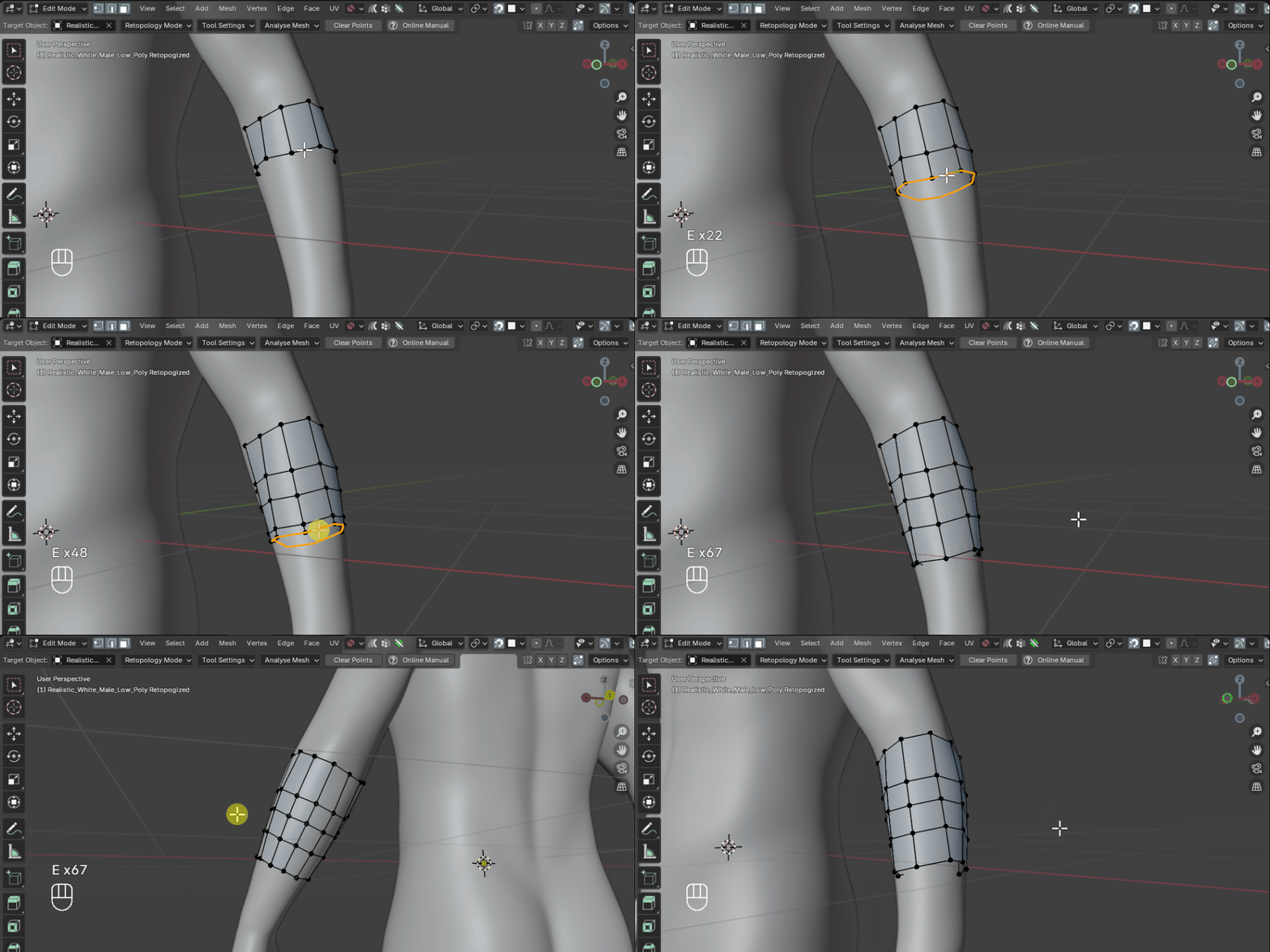
Change modes by pressing the spacebar or in the Tool Settings to select different types of edge selections:
Single Mode - Extrude a single edge.
Edge Loop Mode - Extrude a loop of edges.
Edge Ring Mode - Extrude a ring of edges.
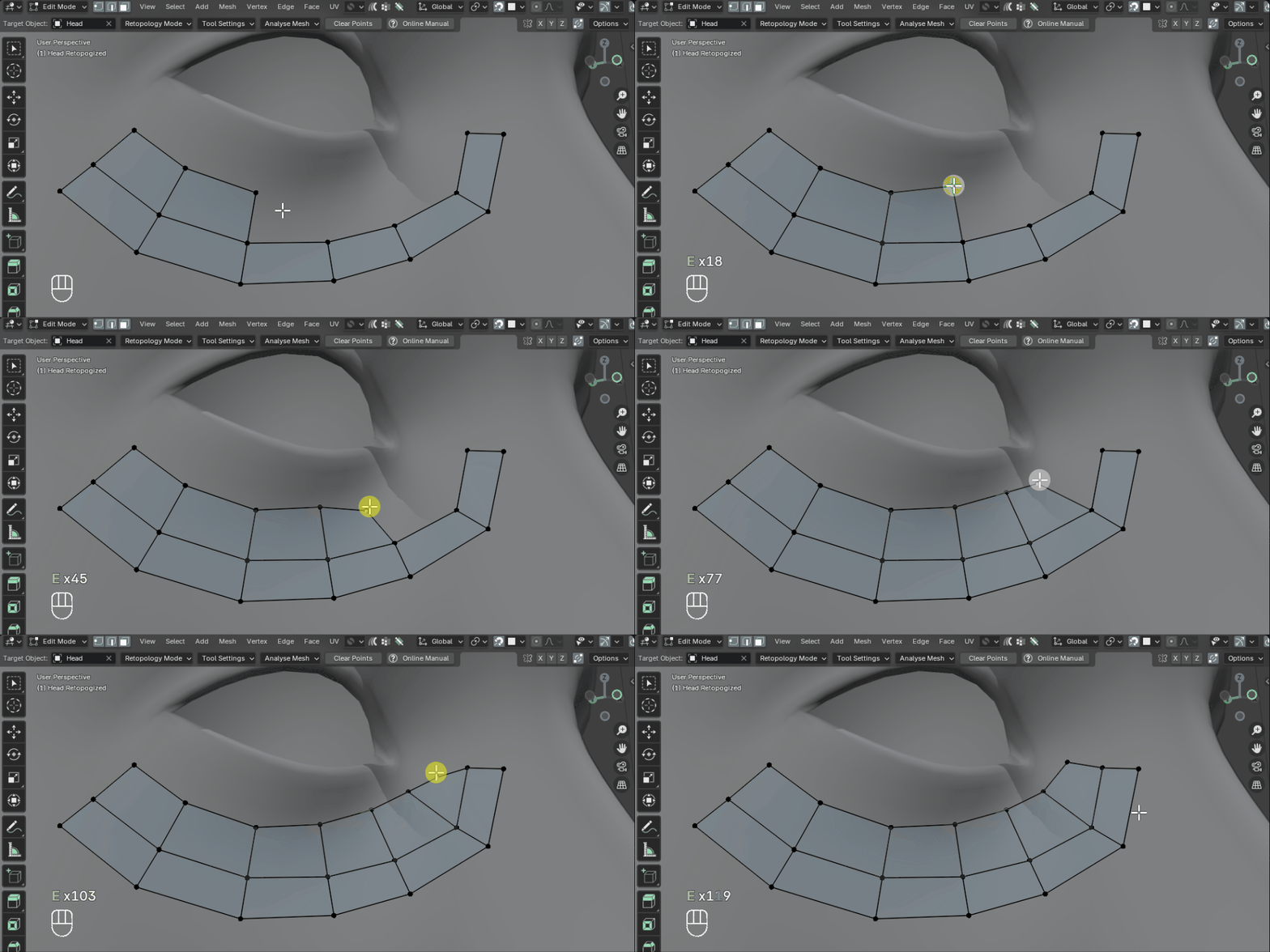
Create Faces - Click near a vertex to create a face.
Quick Loop Cut and Slide
[Hold R + Left Click]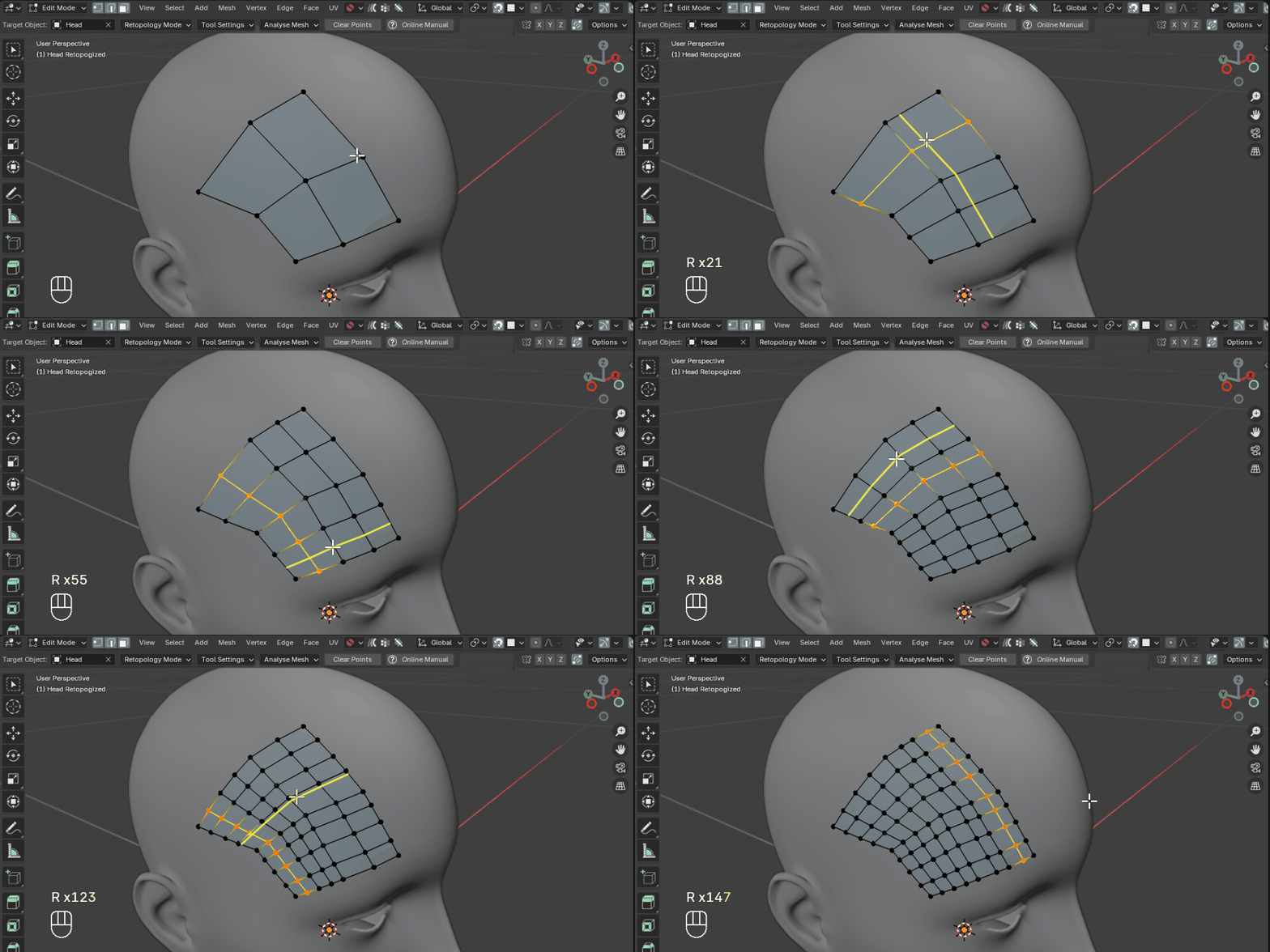
Just by holding R and clicking the mouse over the edges.
Draw Quads
[Hold D and Left Click + Drag]
While Operation is Active:
[F]: Enter size adjust mode, then move the mouse to change the strip size. Left click to confirm, right click to cancel.[Up Arrow / Right Bracket]: Increase strip size by one step[Down Arrow / Left Bracket]: Decrease strip size by one step[Spacebar]: Toggle between Strip and Ring modeNote
When using the Tool Shortcut, keep holding D to keep the operation active.
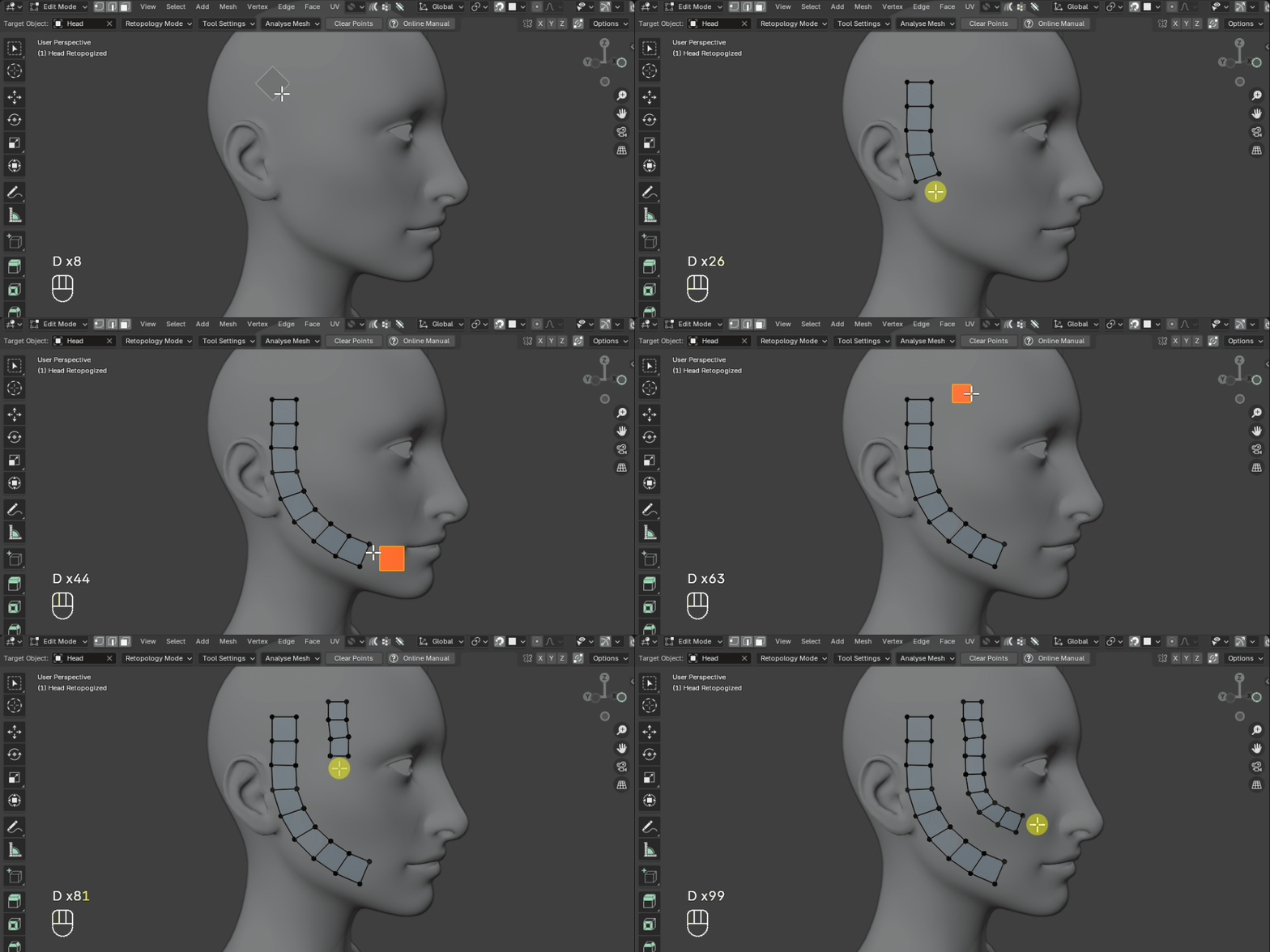
Draw Quads has two modes, toggled with
Spacebar:
Strip Mode
Note
Placeholder: animated GIF showing a freehand quad strip being drawn across a mesh surface.
Click and move the mouse across the mesh to paint a freehand strip of quads onto the surface. Use the mouse wheel to adjust the size of the strip.
Ring Mode
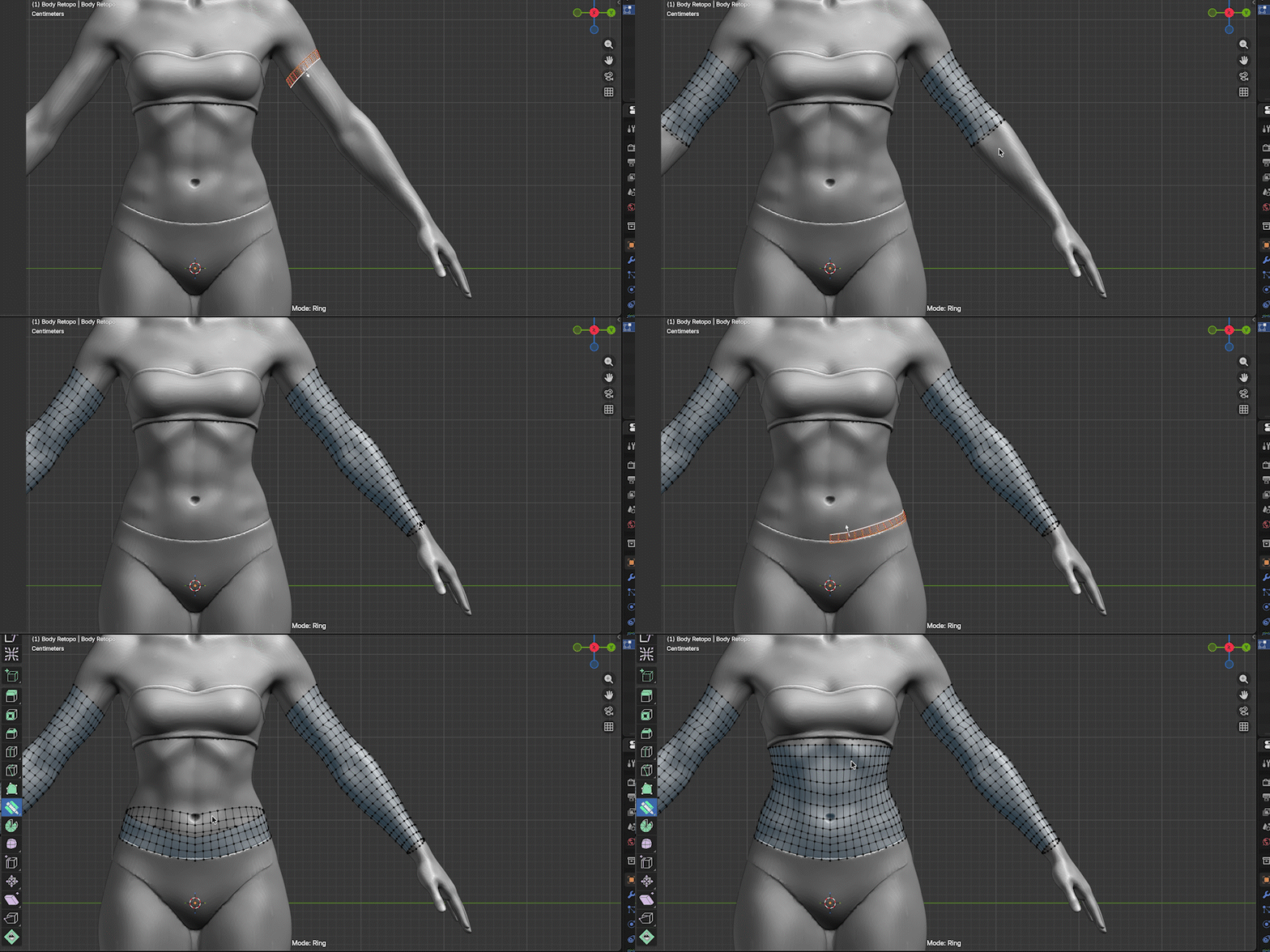
Build rings of quads that follow the contours of a cylindrical form, ideal for retopologizing arms, legs, fingers, and other tube-like shapes. See Draw Quad Rings for full details.
Smooth Vertices
[Hold S and Left Click + Drag]
While Operation is Active:
[Tap F / Up & Down Arrows]: Change brush size[Shift + Tap F / Tap G / Left & Right Arrows]: Change brush strength[Tap Spacebar]: Change vertex relax mode (All, Selected,sssssss Border, Interior, Automatic)Note
When using the Tool Shortcut, keep holding S to keep the operation active.
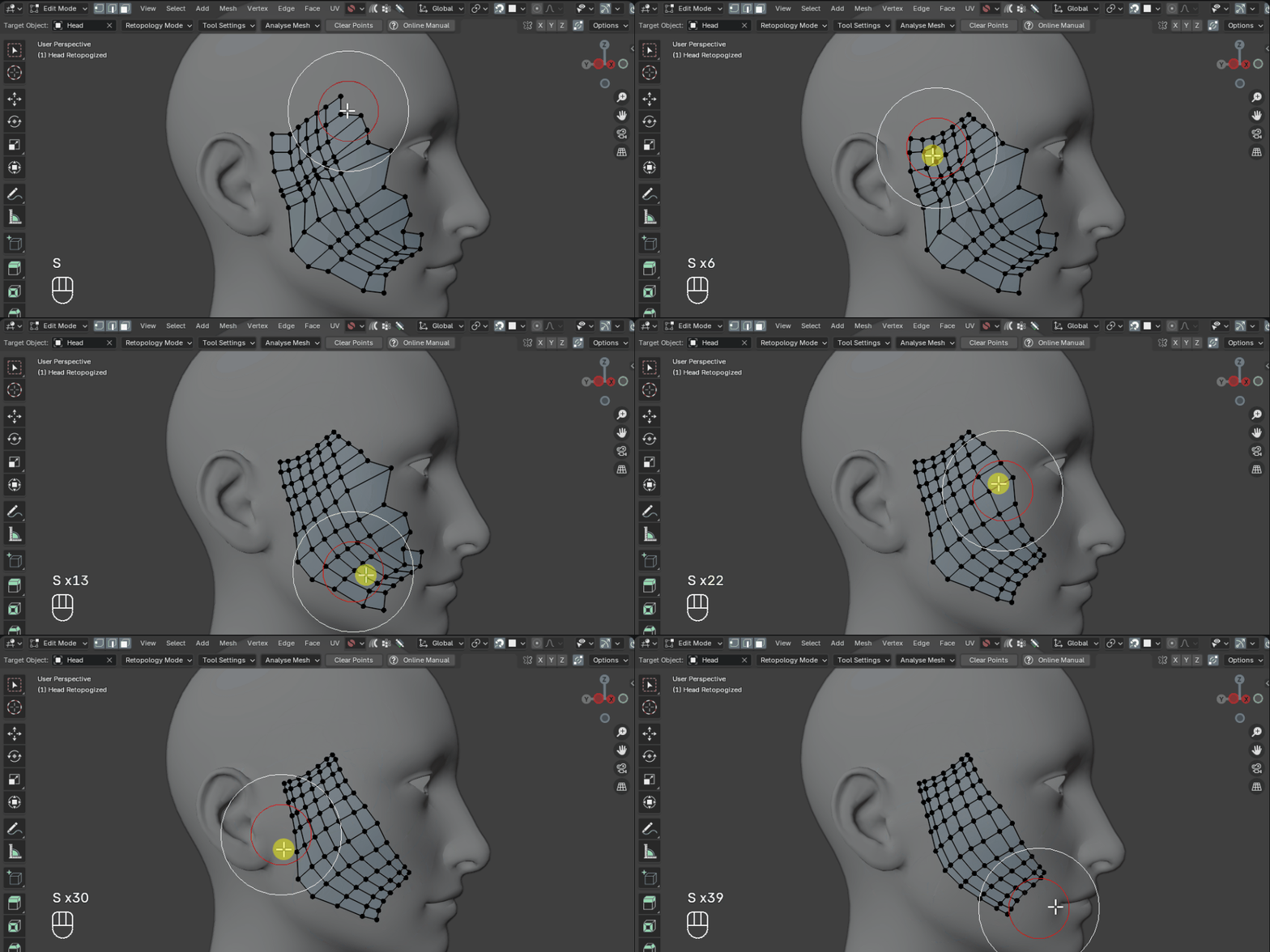
Smooth vertices whilst maintaining their projection onto the target surface.
Smooth Modes
All Vertices: Smooth all vertices.
Selected Vertices: Smooth only selected vertices.
Border Edges: Smooth only border edge vertices.
Interior Vertices: Smooth only interior vertices.
Automatic: Automatically smooth vertices based on the initial selection. If the initial selection is an interior vertex, only interior vertices will be relaxed. If the initial selection is a border vertex, only border vertices will be relaxed.
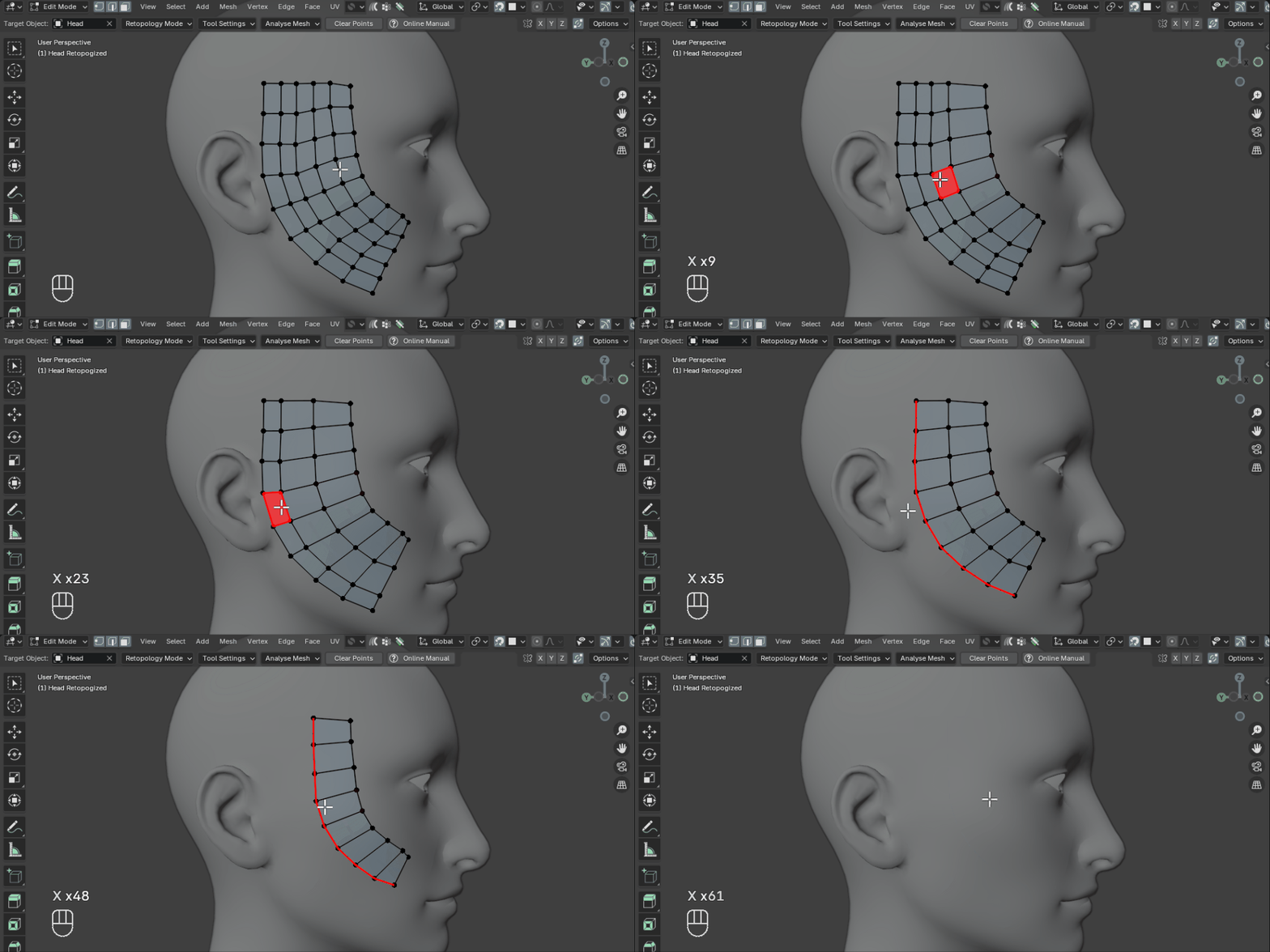
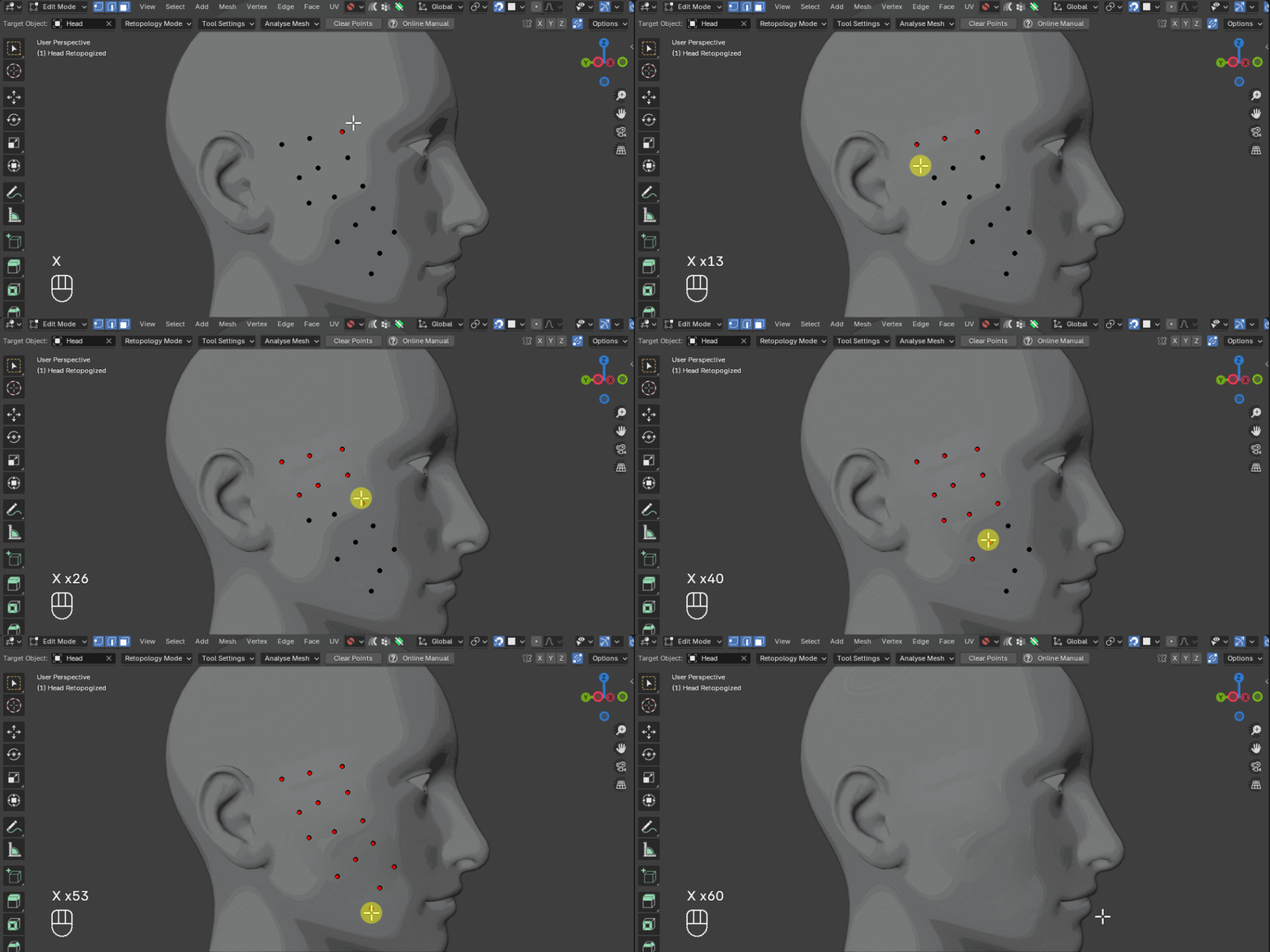
Delete Mode
[Hold X and Left Click + Drag]Delete Faces, Edge Loops, and lone Vertices. Quickly click and drag over a mesh to delete elements by holding X:
Delete Faces - Click and drag over faces to delete them.
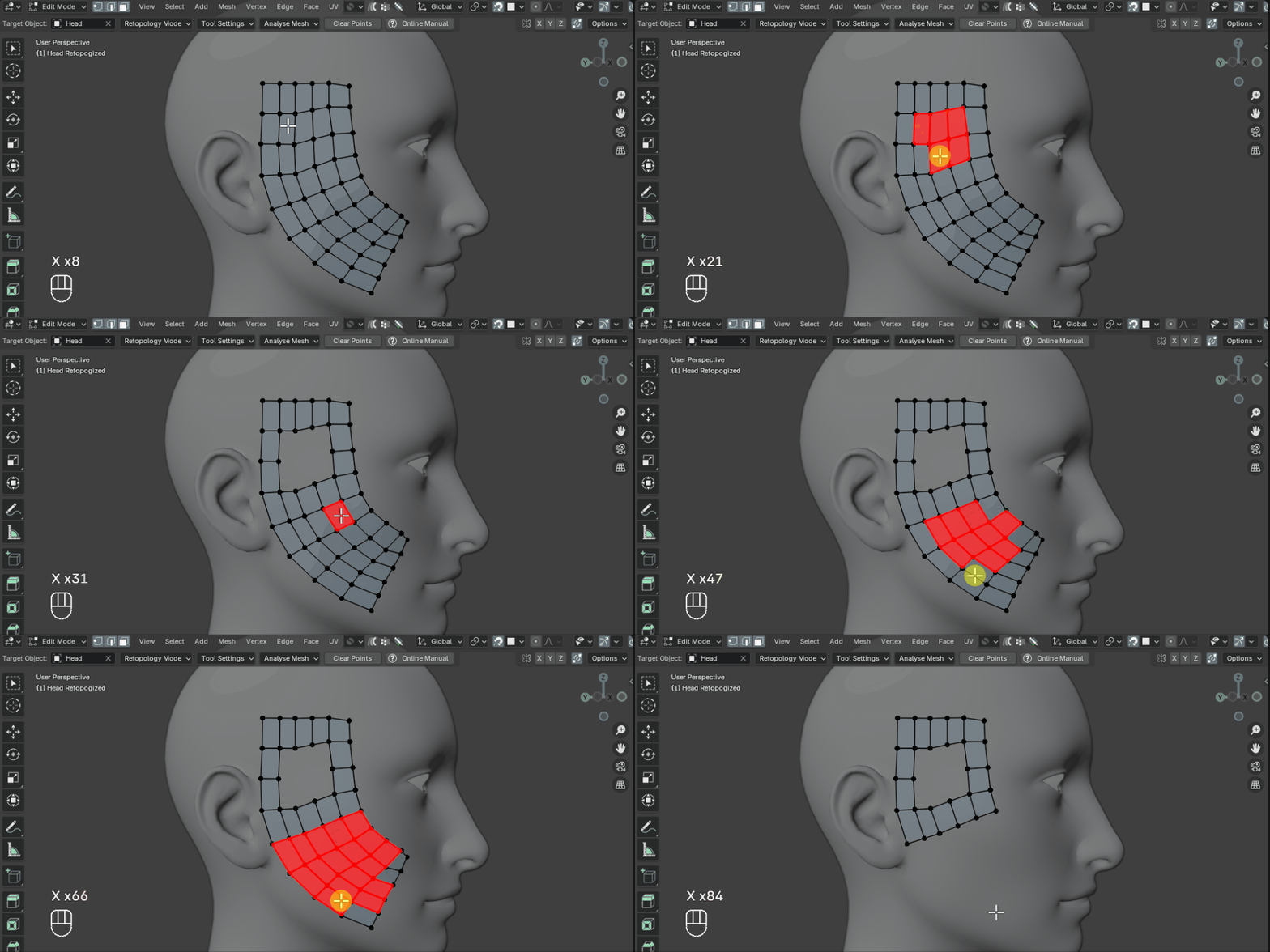
Dissolve/Delete Edge Loops - Click and drag over edge loops to dissolve them. Boundary edge loops will be deleted.
Delete Lone Vertices - Click and drag over vertices that have no edges to delete them.
Tweak Elements
[Left Click + Drag]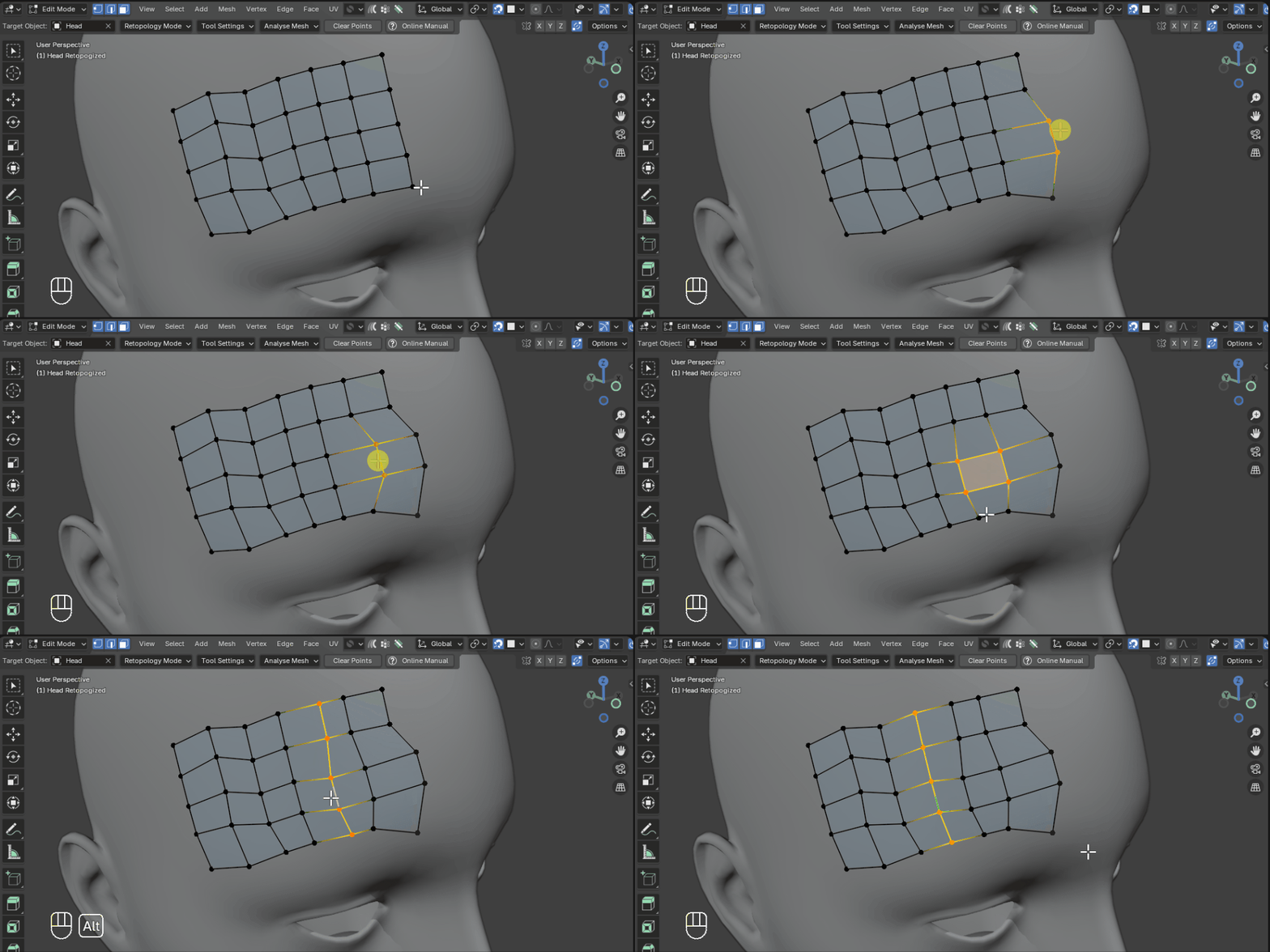
Move vertices, edges, and faces along the mesh.
Hold Alt + Left Click + Drag* to select and move edge loops.Note
* When Emulate 3 Button Mouse is selected in preferences and the Alt key is used for the middle mouse,
Hold Shift + Left Click + Dragto select and move edge loops instead.
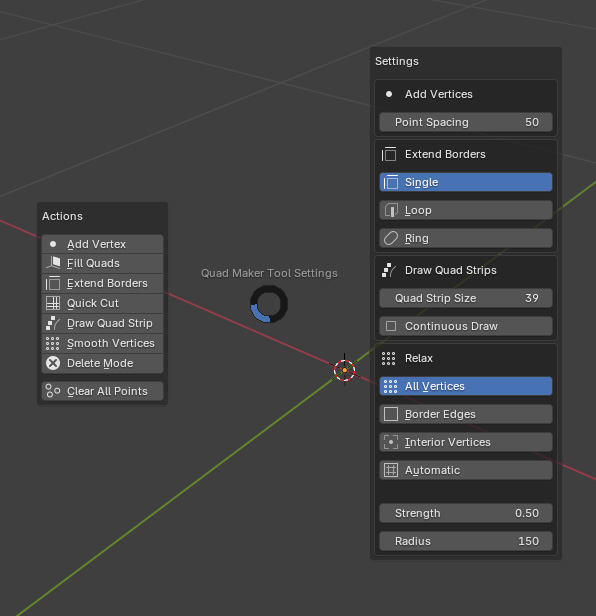
Pie Menu
[Press Q]
A Pie Menu is available either via the right-click Quad Maker edit mode menu or by pressing the Q key when using the main tool. This menu gives you quick access to the Quad Maker operations and settings:
Important
Remember when you have finished with each operation, right-click again or press the escape key to exit.
Tip
You can bind the pie menu to a short cut by right-clicking the Pie Menu option in the Quad Maker right-click menu and selecting Assign Shortcut or clicking on Add to Quick Favorites to quickly access it as a Favorite by pressing Q. Please note that not all hotkeys work depending on what you are doing in Blender.